












Fisheye Filter
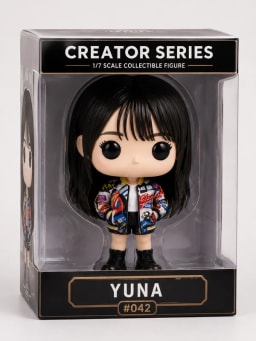
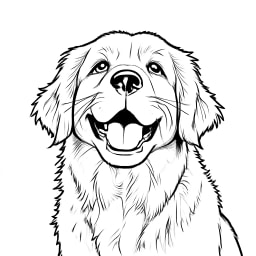
Bend the edges of your original photo with an adjustable fisheye lens effect. Preview the distortion and download a PNG.
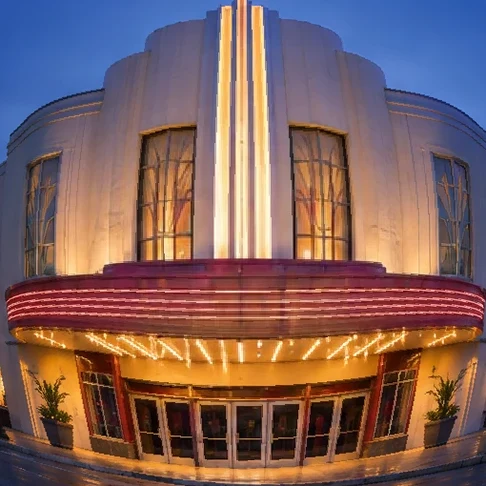
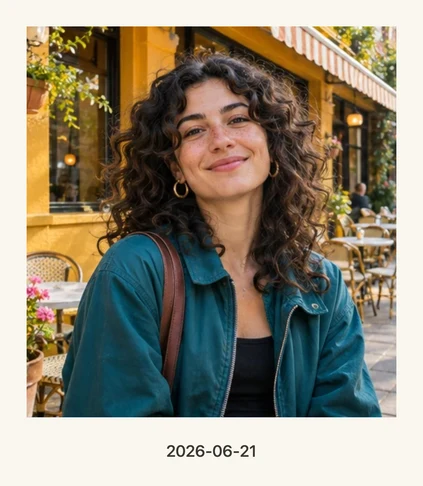
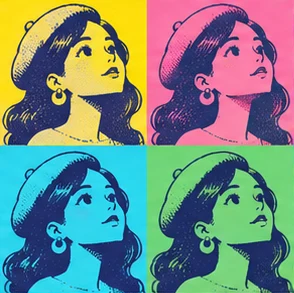
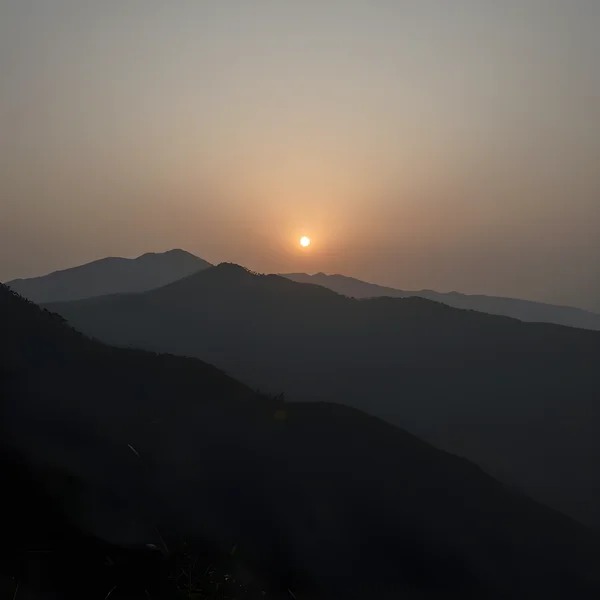
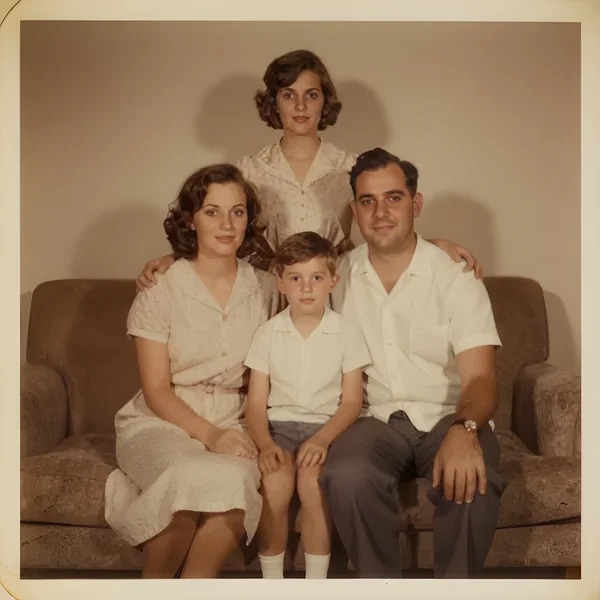
Examples of Fisheye Photo Effects
These examples were exported from the browser editor with the settings shown.
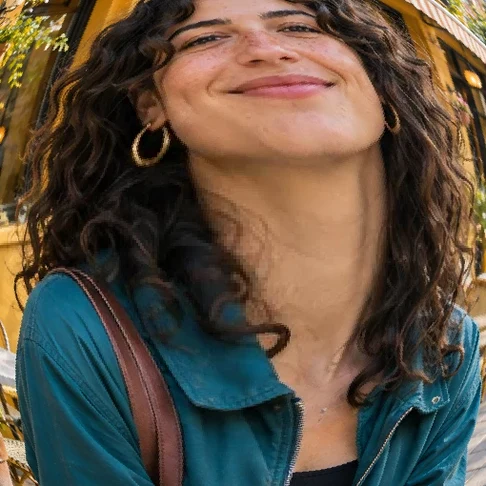
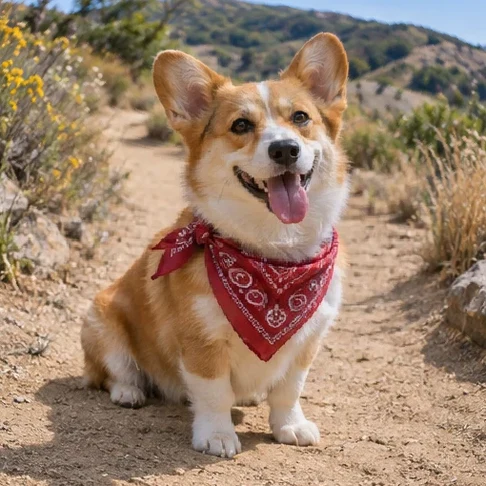
Styles and Settings for Fisheye Photo Effects
The effect expands the center and curves lines toward the sides. Wide, Strong, and Subtle set starting strengths. Use the slider to refine the warp on your original photo.
- Style
- Wide · Strong · Subtle
- Default
- Wide
- Styles and settings
- Distortion strength
How to Make Fisheye Photo Effects
Upload a photo
Try a photo with straight lines near the edges. Start at low strength to compare the bend with the original.
Choose a style
Choose a style and adjust the available settings.
Download
Check the preview and select Download to save a separate PNG copy.
Photo Requirements and Downloads
- Input
- One photo · JPG, PNG, WebP ≤ 10 MB
- Output
- PNG · ≤ 2048 px
- Access
- Runs in your browser. No account or credits required.
Fisheye Photo Effects FAQ
Will the fisheye filter add a circular black border?
The effect warps the full rectangular photo and keeps its aspect ratio. Move the subject toward the center in your original composition for the most obvious bulge.
Can I control how much the fisheye filter bends the image?
Yes. Adjust the strength from 0 to 100. At 0, the preview uses the original geometry. Straight lines near the edges make changes easy to judge.
Will the filter reduce my photo’s dimensions?
The longer edge is capped at 2048 px and smaller photos keep their size. The output is a new PNG and your source file remains available.
What can I start with?
Upload one photo in JPG, PNG, or WebP, up to 10 MB.
What file can I download?
PNG · ≤ 2048 px
Do I need to sign in?
Runs in your browser. No account or credits required.
Can I try it with a sample photo?
Yes. “Try a sample photo” loads an image into the editor. Adjust the effect and preview the result before downloading.