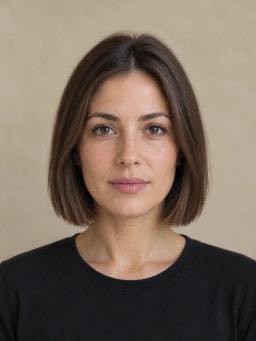
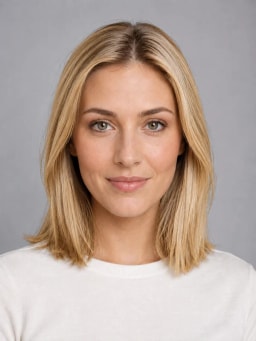
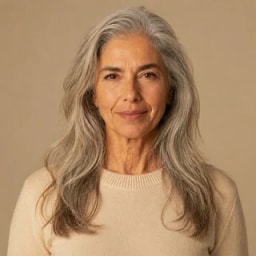
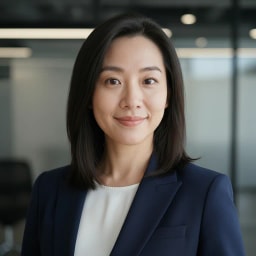
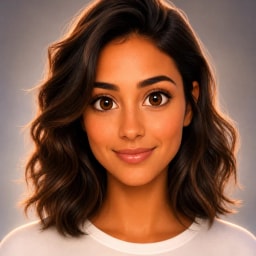
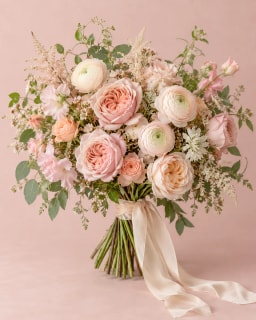
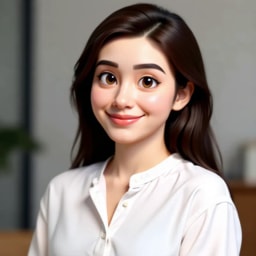
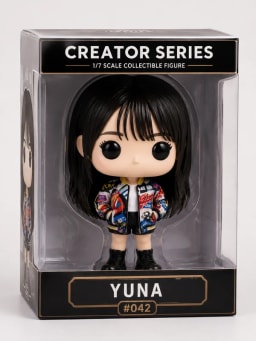
For current CubistAI use, the default generator requires a free account and credits. Free balances reset to 10 daily; cost, resolution and batch size depend on the model and access level shown in the tool. Guest trials are limited. The model examples in this article do not guarantee the currently selected model, a fixed waiting time or unlimited free use.
🎨 What is AI Art Generation?
AI art generation is a technology that uses artificial intelligence algorithms to automatically create images based on text descriptions. CubistAI uses the advanced SDXL-Lightning model to generate high-quality artwork in just seconds.
Why Choose CubistAI?
- Start with a free account and selected image models.
- ⚡ Lightning Fast: SDXL-Lightning model for 4-step rapid generation
- Your Free balance resets to 10 credits daily; generation costs vary by model, quality and image count.
- 🌍 Multi-language Support: Interface supports 11 languages
- 📱 Responsive Design: Perfect for both mobile and desktop
📝 Writing Effective Prompts
Prompts are the core of AI art generation. A good prompt helps you generate images that better match your expectations.
Basic Prompt Structure
Subject + Style + Environment + Lighting + Quality Terms
Example:
A majestic dragon flying over a mountain range, digital art style, sunset lighting, highly detailed, 4K resolution
Prompt Tips
-
Be Specific: Use concrete rather than abstract vocabulary
- ❌ "Beautiful landscape"
- ✅ "Serene lake at the foot of snow-capped mountains, reflecting pink cherry blossoms"
-
Add Style Words: Specify artistic styles
studio ghibli style - Studio Ghibli stylephotorealistic - Photo-realisticcyberpunk style - Cyberpunk style
-
Quality Modifiers: Enhance image quality
highly detailedprofessional photographyaward winning
🎯 Complete CubistAI Workflow
Step 1: Access CubistAI
Visit cubistai.app — Free account to generate
Step 2: Enter Your Prompt
In the prompt input field, describe the image you want. For example:
A firefighter with a rugged jawline rushes through the billowing smoke of an autumn blaze, cinematic lighting, dramatic composition
Step 3: Choose Style and Parameters
CubistAI offers various preset options:
- Style: Realistic, Ghibli, Cyberpunk, Digital Art, etc.
- Color: Vibrant, Muted, Monochrome, Warm tones, etc.
- Lighting: Natural light, Studio lighting, Neon lights, etc.
- Composition: Portrait, Landscape, Close-up, Wide angle, etc.
Step 4: Set Image Parameters
- Aspect Ratio: 1:1 (Square), 16:9 (Landscape), 4:5 (Portrait)
- Free supports one image per request. Larger batches depend on the active paid plan and the selected model.
- Creativity Level: Adjust AI's creativity
Step 5: Start Generation
Click the "Generate Image" button and AI will start working:
- Processing time varies with the task and service load; a fixed 15-second wait or instant completion is not guaranteed.
- Credit cost depends on the selected model, quality and image count; check the displayed cost before generating.
🌟 Advanced Tips and Best Practices
Using Negative Prompts
In advanced settings, you can add negative prompts to avoid unwanted elements:
negative_prompt: "blurry, low quality, distorted, ugly, bad anatomy"
Prompt Templates for Different Scenarios
Portrait Photography:
Portrait of [character description], [emotional expression], [lighting conditions], professional photography, sharp focus, bokeh background
Landscape Art:
[scene description], [time/season], [weather conditions], [art style], wide angle, highly detailed
Abstract Art:
Abstract [theme], [color description], [texture], [mood], digital art, modern composition
Tips for Optimizing Generation Quality
-
Use Magic Wand Optimization: CubistAI's built-in AI prompt optimizer - click the wand icon to automatically optimize your prompts
-
Experiment with Different Styles: Try different style combinations to find the best results
-
Adjust Creativity Level:
- Low values (0-30): More accurately follow the prompt
- Medium values (31-70): Balance accuracy and creativity
- High values (71-100): More creative variations
💡 Creative Inspiration and Examples
Studio Ghibli Style Art
A peaceful village in a valley, Studio Ghibli style, soft colors, rolling hills, windmill, blue sky with white clouds, hayao miyazaki art
Cyberpunk Cityscape
Neon-lit cyberpunk cityscape at night, flying cars, holographic advertisements, rain-soaked streets, futuristic architecture, purple and blue lighting
Enchanted Forest
Enchanted forest with glowing mushrooms, fairy lights, misty atmosphere, magical creatures, ethereal lighting, fantasy art style
🚀 Advanced Features
Credit System
- Your Free balance resets to 10 credits daily; generation costs vary by model, quality and image count.
- Credit cost depends on the selected model, quality and image count; check the displayed cost before generating.
- Processing time varies with the task and service load; a fixed 15-second wait or instant completion is not guaranteed.
Batch Generation
Free supports one image per request. Larger batches depend on the active paid plan and the selected model.
Image Download
Generated images can be downloaded in high quality, supporting:
- PNG format
- High-resolution output
- One-click download function
🔍 Common Problem Solutions
Generated Images Don't Match Expectations
- Refine Prompts: Add more specific descriptions
- Use Negative Prompts: Exclude unwanted elements
- Adjust Style Settings: Try different style combinations
- Use Optimization Feature: Use the wand button to optimize prompts
Content Safety Guidelines
CubistAI has built-in safety filtering to ensure healthy, positive content:
- Automatic NSFW content detection
- Smart prompt filtering
- User-friendly safety suggestions
🌟 Conclusion
CubistAI makes AI art creation simpler and more accessible than ever before. Whether you're a beginner or professional creator, you'll find suitable tools and features here.
Start Your AI Art Journey:
- Visit cubistai.app
- Enter your creative ideas
- Choose appropriate style parameters
- Click generate and witness AI's magic
Remember, the best AI art comes from continuous experimentation and practice. Every generation is a learning opportunity - let's explore the infinite possibilities of AI art together!
Want to learn more about AI art techniques? Follow our blog for the latest tutorials and inspiration sharing.